

Yes, you can schedule Substack Notes. You can do it in two ways: directly in Substack or through Buffer, which lets you plan Notes on the same calendar as your other channels, send the same Note to LinkedIn, Threads, X, and Bluesky, and see which Notes brought in subscribers. Both are free.
We’ll walk through how it works, where Substack's built-in scheduler falls short, and what I've learned from scheduling a Note every day this month for Buffer's own publication.
Jump to a section:
How to schedule a Note inside Substack
Substack added native scheduling for Notes on March 23, 2026, on web, iOS, and Android. Before that, the only options were a third-party extension or posting manually.
Here's how it works on the web:
- Open Substack and click the plus + button, then Note (or Create → Note if you’re on your profile) to start a new Note.
- Write the Note as you normally would. You can add images, links, video, and create polls.
- Click the calendar icon at the bottom of the composer.
- Pick a date and time. Substack uses your local time zone.
- Click Save, then Schedule.
On the iOS and Android apps, tap the plus + button to start a Note, write it, then tap the three dot ⋯ menu and choose Schedule.
Every scheduled Note lands in your Drafts, with the publish time shown underneath. You can open one from there to edit it or change the time before it goes out. Substack lets you schedule up to three months ahead.
What the native scheduler doesn't do
There's no calendar view, so you're reading a list of drafts rather than seeing your week of planned content.
You can also only schedule one Note at a time. And you can't send the same Note to another platform, and there's no per-Note reporting beyond the likes, replies, and restacks you can see on the Note itself.
For a writer posting a couple of Notes a week, this is fine, great even. But once Notes become a daily habit, or one of several channels you're keeping up with, you may start to want more. And this is where Buffer comes in.
How to schedule Substack Notes with Buffer
Buffer's Substack integration is built on Substack's official API, and it treats your Substack account like any other channel: connect it once, and Notes show up on the same calendar and in the same composer as your LinkedIn, Threads, X, Instagram, and Bluesky posts.
Scheduled Notes publish directly at the time you set. There's no reminder step or "finish this in the Substack app" notification.
- Log in to Buffer (or create a free account) and go to Channels → Connect a channel.
- Choose Substack and sign in to authorize Buffer.
- Click Create Post, select your Substack channel, and write your Note. You can add images, a link, or a video.
- If you want the same Note to go out to LinkedIn, Threads, X, or Bluesky, select those channels too and tweak each version until you’re satisified.
- Pick a time (or use one of your set posting slots) and click Schedule.
Once a Note is live, Buffer's analytics show impressions, engagement, follows, as well as how many free and paid subscribers each Note brought in.
Because your other channels sit in the same dashboard, you can put a Note next to the LinkedIn version of the same idea and compare performance as well.
Two more ways to use Substack in Buffer
- You can add your Substack publication as a feed in Buffer, which pulls your published posts in
Recommended Story For You :
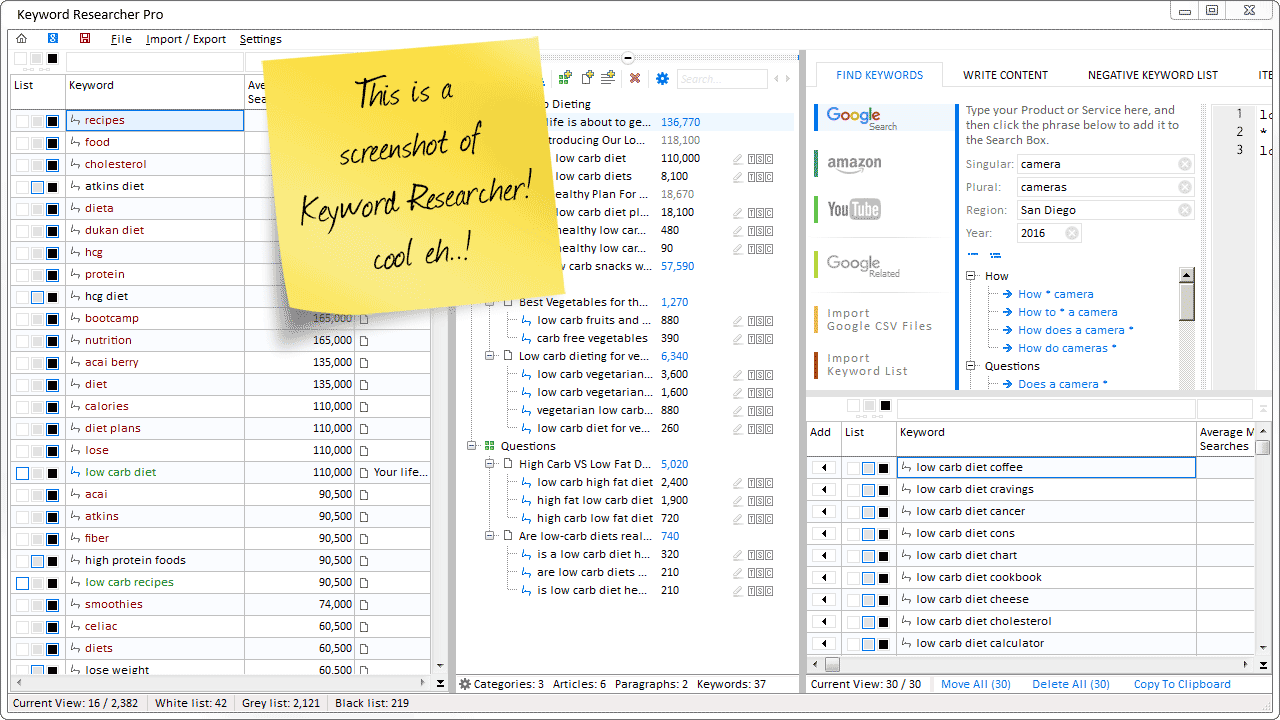
Organize Keywords and Import CSV Files from the Google Keyword Planner

The Most Affordable And Easiest User Friendly Page Builder You Will Ever Use!

Instant WordPress Theme That Matches Your Website
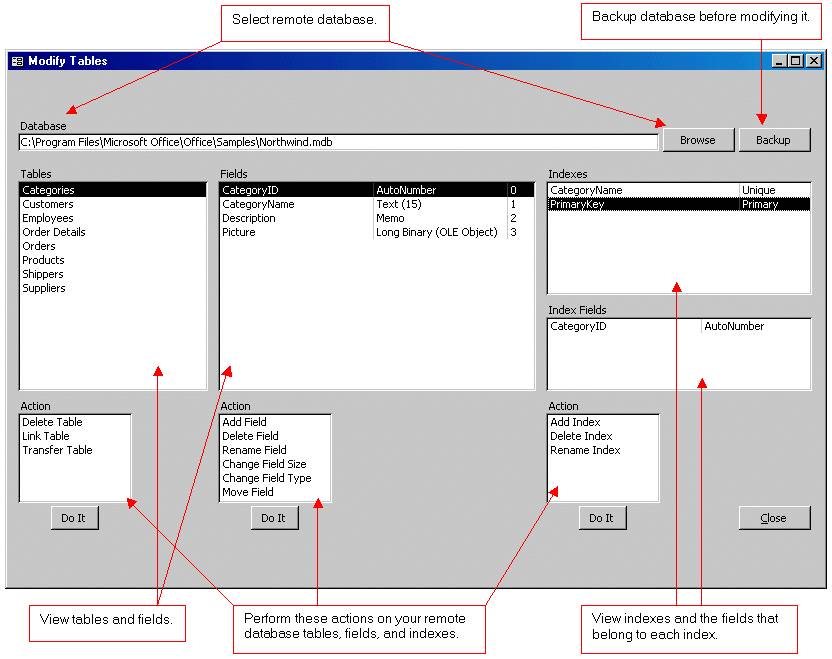
Wizard to Manage Remote Backend MS Access Database Tables Fields and Indexes

If you had an aisle-by-aisle grocery list wouldn't you spend less money on impulse items?

everything you need to create a professional corporate look mini-site is there.